 Sudharsan Ananth
An OPML file lets you move RSS feed addresses, names, and folders between readers. To import one into Sparkfeed, open Sources, select Import / export OPML, and preview the file. To download your subscriptions, use the export icon in the same dialog.
Get an OPML file from your current reader
If you’re moving from Feedly, sign in on the web, open the Feedly OPML export page, and download your subscriptions. Feedly includes public RSS sources in this export. Save anything you need from Boards or Read Later separately. Feedly’s export instructions
For another reader, look for Export OPML in its subscription or backup settings. Keep a copy of the original file until you’ve checked the feeds in Sparkfeed. To try the steps first, download Sparkfeed’s sample research feeds. It’s the file shown below.
Import an OPML file into Sparkfeed
- Open Sources in the workspace where you want the feeds. Select Import / export OPML in the toolbar. You can also open Add Feed and choose the OPML tab.
- Drop one OPML or XML file into the dialog, or select Browse files. Sparkfeed accepts files up to 5 MB.
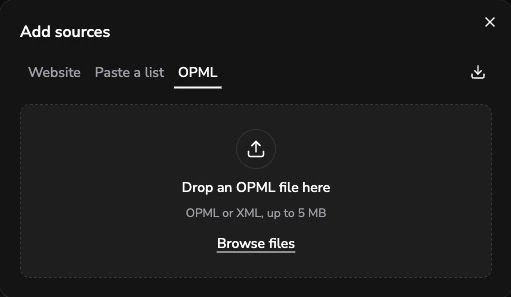
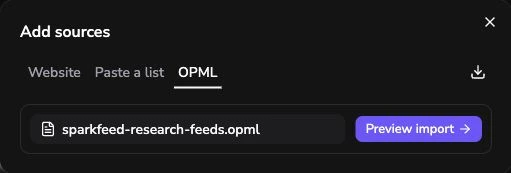
- Select Preview import beside the filename.
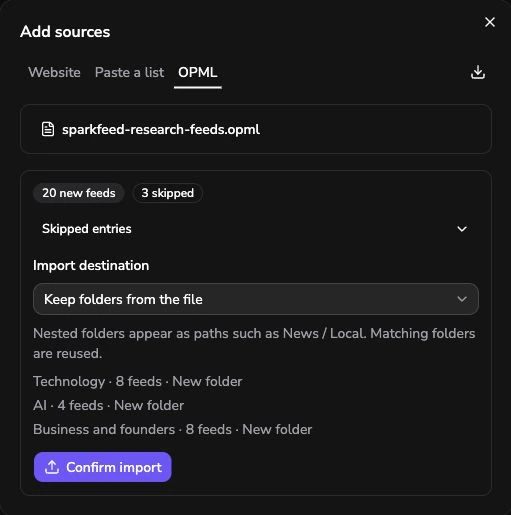
- Review the counts. Expand Skipped entries to see which subscriptions Sparkfeed will skip and why. Previewing a file lets you check the result before adding feeds.
Choose where the imported feeds go

| Destination | When to use it |
|---|---|
| Keep folders from the file | Use the organization from your old reader. Sparkfeed reuses matching folder names and displays nested folders as paths such as News / Local. Feeds outside folders go to Unfiled. |
| Create a new folder | Keep a shared reading list together. Edit the suggested folder name before confirming. |
| Choose an existing folder | Add the new subscriptions to a collection you already follow. Select the folder by name. |
Select Confirm import when the destination is right. The summary reports how many feeds and folders Sparkfeed added. Open Sources to find them. Articles load in the background.
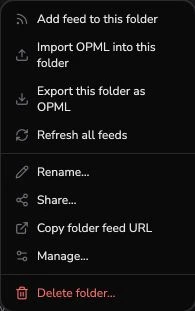
If a colleague sends you a list for one project, open that project folder’s menu in Sources and select Import OPML into this folder. The preview opens with that folder selected as the destination.
Export all subscriptions or just one folder
For the whole workspace, open Sources, select Import / export OPML, and click the download icon to the right of the tabs. Hover or focus the icon to see Export all subscriptions as OPML. Save sparkfeed-subscriptions.opml and choose it in the destination reader’s import dialog.
For one folder, open the folder’s menu in Sources and select Export this folder as OPML. Use this when a teammate needs just one collection. To share research feeds with someone who wants to choose their own reader, send them the downloaded file.
Common questions
Why was my feed skipped?
Sparkfeed checks feed addresses across the workspace and within the file. If you already follow a feed in another folder, the importer keeps its existing name and location. Repeated entries in the same file are also skipped. Expand Skipped entries for the specific reason, including invalid or missing feed addresses.
Does an OPML export include saved articles?
OPML carries subscription information. Keep a separate backup for articles, favorites, reading history, and website monitors. If a source has no RSS feed, see how Sparkfeed follows websites and RSS feeds. The OPML 2.0 specification describes the subscription fields readers exchange.
How do I check a migration?
Open a destination folder and compare a few feed names with the original reader. Check an unfiled subscription too, if your file contained one. To check for duplicates, preview the same file again. Subscriptions already in the workspace will appear among the skipped entries.