



To follow a website through RSS, first check whether the publisher already provides a feed. If it does not, you have two different options: follow a supported page inside a reader, or use an RSS generator that produces a feed URL for another application. Those are different capabilities. A page appearing in a reader does not mean you have a portable RSS file.
For a writer, the useful result is simple: new posts from a relevant publication arrive in one place. This guide explains how to choose the right collection method, check that it works, and keep realistic expectations about websites without feeds and OPML migration.
What does website to RSS mean?
Website-to-RSS conversion extracts a site’s entries and publishes them in a syndication format that a reader can subscribe to. A native feed already does that work for you. A generated feed depends on a separate tool reading the page correctly.
The RSS 2.0 specification describes an XML format containing a channel and its items. An item may contain a headline, link, publication date, and description. The publisher chooses what to include; RSS does not guarantee the full article or a complete archive.
A watched website source can look similar in a reading application while remaining a different thing. The application collects entries for its own interface, but may not publish an RSS URL. Before choosing a tool, ask what you need to do with the result.
| What you need | Appropriate method | What to verify |
|---|---|---|
| Read a publisher’s latest posts | Subscribe to its native RSS or Atom feed | It contains the section and recent items you want |
| Follow new entries on a public page without RSS | A reader that supports that page, or a page extraction tool | It finds actual articles rather than navigation and promotion links |
| Send updates into another RSS-compatible app | An RSS generator that exposes a feed URL | The receiving app can fetch and parse that URL |
| Detect an exact pricing or wording change | A dedicated text or visual change monitor | It compares the relevant part of the page and reports the change |
| Move subscriptions between readers | OPML import and export where supported | Both readers handle the file, folders, and source types you use |
A feed reader and a change detector solve different problems. New posts are entries. A changed sentence on the same page is a revision. For the second job, use the guide to competitor website monitoring to compare methods.
How do you find a site’s existing feed?
Start with the publisher’s own RSS link or try its website address in your reader’s discovery control. Native feeds are generally the simplest collection path because the publisher supplies the structure.
Look in the footer, help page, or publication’s subscription options for RSS or Atom. A large publication may offer separate feeds for sections and authors. Follow the section closest to your beat rather than adding the whole publication by default.
Do not assume that every feed lives at the same address. Common paths such as /feed or /rss.xml are conventions, not guarantees. A working-looking URL can also be a normal webpage or an error page. Open the result in a reader and inspect the items before relying on it.
A quick acceptance check is more useful than collecting a long list of addresses:
- Compare a recent item with the original publication.
- Check that the title, link, and date make sense.
- Confirm that the feed covers the right topic or section.
- Review it after the publisher adds another post.
If an item only contains an excerpt, open the original to read the rest. A summary in your reader is not proof that you have seen every qualification in the article.
What if the website has no RSS feed?
Use a collection method suited to the page’s structure and to the output you need. A public blog index with separate article links is a different problem from a login-only dashboard or a page whose content appears only after interaction.
For example, FiveFilters Feed Creator provides an interface for creating feeds from pages and filtering the links it extracts. Its output is intended to be consumed as a feed. Test the actual result in your chosen reader before adopting it for a recurring assignment.
If you only want to read the updates in one workspace, an application that supports website sources may be enough. Sparkfeed can discover feeds and suggest supported public pages when a native feed is not found. Check the returned candidates rather than assuming any pasted URL will work.
| Page you want to follow | Practical approach | Common failure to check |
|---|---|---|
| Public blog or newsroom listing | Prefer native feed; otherwise test page extraction | Navigation links mistaken for new stories |
| A topic or author archive | Use its specific feed or listing page | Results include the whole publication |
| A product release-notes index | Follow entries and read individual releases | A revision to an old entry may not appear as a new item |
| A pricing page | Use a dedicated change monitor | A reader cannot promise an exact before-and-after diff |
| A paywalled or signed-in page | Use the publisher’s supported subscription options | Your browser access does not grant the collector access |
| A heavily interactive page | Look for an official feed, export, or alternative public source | Content is absent from the fetched page |
A failed source is a collection problem to investigate. It does not show that a publisher stopped posting. Likewise, a quiet feed may be healthy if the publisher rarely publishes.
How do you add sources in Sparkfeed?
Use Sparkfeed’s Add Feed control to check a website and select the sources it finds. The following steps reflect the application interface and source reviewed on September 17, 2026. The public demo shows the reader, but adding sources is locked there.
- Create a free account and open Sources.
- Choose Add Feed. The source dialog offers Website and Paste a list.
- For one site, use Website and check the address. Prefer the publisher’s RSS or Atom candidate when available.
- Review the returned candidates. If no native feed is found, a supported public listing page may be suggested. Select only the sources you actually want.
- Choose the destination folder, then add the selected sources.
- Inspect the arriving articles and return to Sources to check their health.
For several known sources, Paste a list accepts URL input. Review the check results before adding them. An unresolved address needs attention; adding it repeatedly will not fix a blocked page or an unsuitable source.
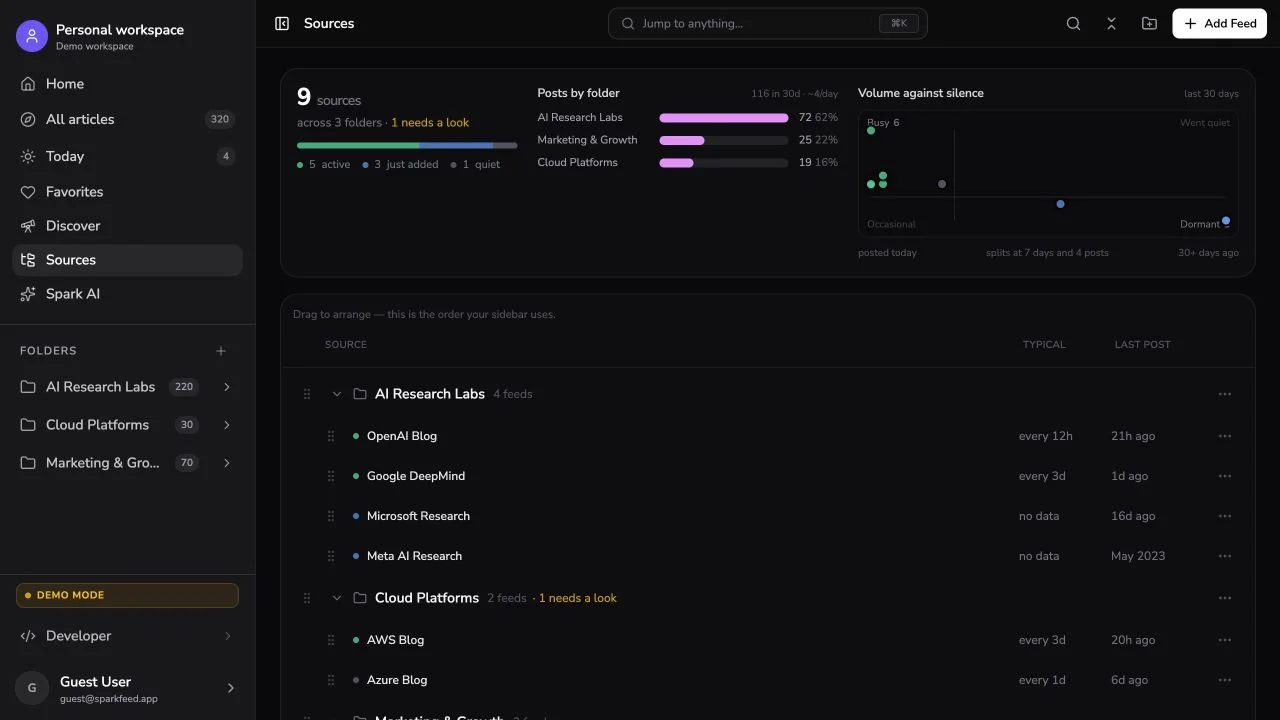
Folders group recurring sources. Favorites mark individual articles you want to revisit. For a weekly issue, you might group publications by topic, shortlist useful articles, and keep the issue outline in your writing document. The newsletter curation workflow explains that next step.
Sparkfeed’s hosted Free plan includes five active no-RSS sources. Ordinary RSS feeds and no-RSS sources are different allowances, so check the current plan details if your research depends on many pages without feeds. Optional Spark AI uses managed credits on hosted plans. Self-hosted Community uses operator-configured providers; neither setup makes an AI summary a substitute for checking the original.
Do not assume that a website source in Sparkfeed provides a public XML feed URL. If your next step requires a feed URL for another application, choose a generator that documents that output. For broader tool selection, compare the Feedly alternatives and their limitations.
How do you check whether a source is useful?
Judge a source by the material it reliably supplies to your work, not just whether the initial check succeeds. Test a small set before importing a large collection.
For an illustrative freelance-writing setup, choose one trade publication, one company newsroom, and one independent practitioner. Give each a clear purpose in your source list. The newsroom establishes what a company announced; the trade publication adds context; the practitioner may offer a firsthand example worth investigating.
Record the publisher, source URL, reason for following it, and any known limits in a simple document. When several articles repeat the same announcement, retain the original and keep only the additional reporting that contributes something new. Do not assume the reader automatically identifies every syndicated or rewritten duplicate.
Review the collection when it starts producing too much irrelevant material. A narrower feed, a more specific page, or removing a low-value source can be more useful than another folder. If your goal is writing rather than collecting, follow the guide to finding article ideas from followed sources.
What does an OPML file preserve?
OPML is an outline format often used to exchange feed subscriptions. In a subscription file, each feed entry can identify its address, and nested outlines can represent folders. It is a list of sources, not a full backup of your research.
The OPML 2.0 specification defines the outline structure. Reader-specific exports may contain extra attributes, and importers may handle them differently. Expect to check the result after a move.
For example, Feedly’s export documentation says its OPML export excludes Boards, Read Later content, Feedly AI Feeds, and Reddit feeds. Keep important saved material separately before closing an account.
A minimal illustrative subscription file looks like this:
<?xml version="1.0" encoding="UTF-8"?>
<opml version="2.0">
  <head><title>Writing sources</title></head>
  <body>
    <outline text="Industry" title="Industry">
      <outline type="rss" text="Example publication"
               xmlUrl="https://example.com/feed.xml"
               htmlUrl="https://example.com/" />
    </outline>
  </body>
</opml>
The example addresses are placeholders. The file lists a subscription; it does not contain the publication’s articles, your annotations, or your reading history.
Is Sparkfeed’s OPML import and export available?
OPML migration is not verified in the Sparkfeed implementation reviewed for this update. The marketing site and docs advertise it, but the application review found bulk URL handling without a verified complete OPML import-and-export workflow. Treat these as separate capabilities.
Keep your original OPML export. For Sparkfeed, test a small set of source URLs and confirm that the articles you need arrive. If one-step OPML migration is essential, choose a reader with verified support until this gap is resolved. Do not paste an XML file into a URL field and assume that folders or subscriptions were imported correctly.
What should you do first?
Choose one publication you need for a current assignment. Find its native feed, or test a suitable public page when there is none. Verify the items, then add the next source. A small collection you trust is a better starting point than an untested import.
You can explore Sparkfeed’s reading interface or start a free research workspace. Use it to collect sources and shortlist useful articles, then return to the originals when you write.
Sources and further reading
- RSS 2.0 specification, RSS Advisory Board
- OPML 2.0 specification
- Feedly’s OPML export instructions and exclusions
- FiveFilters Feed Creator
- Sparkfeed hosted plans, documentation, and privacy policy
Frequently Asked Questions
Can every website be converted into an RSS feed?
No tool can reliably promise every website. Public listing pages are often more suitable than pages behind access controls or pages that need substantial interaction. Prefer an official feed and test generated results before relying on them.
Is a website source the same as an RSS feed URL?
No. A reader can collect website entries for its own interface without exposing a portable RSS XML URL. Check for an explicit output-feed feature if another application needs to subscribe to the result.
Can RSS show changes to a pricing page?
RSS usually carries published entries. Exact edits to the same pricing page are better suited to a text or visual change monitor. A new feed item and a detected page revision are different events.
Will OPML move my saved articles and notes?
Do not expect it to. OPML subscription exports generally move feed addresses and folder outlines, with details depending on the applications. Back up saved research separately and review your reader’s export documentation.
Can I import an OPML file directly into Sparkfeed?
Complete OPML import and export remain unverified in the implementation reviewed September 17, 2026. Sparkfeed’s bulk URL input is a separate workflow. Keep your OPML backup and test the source URLs you need rather than assuming a full migration.
